How to Fix a 500 Internal Server Error in WordPress
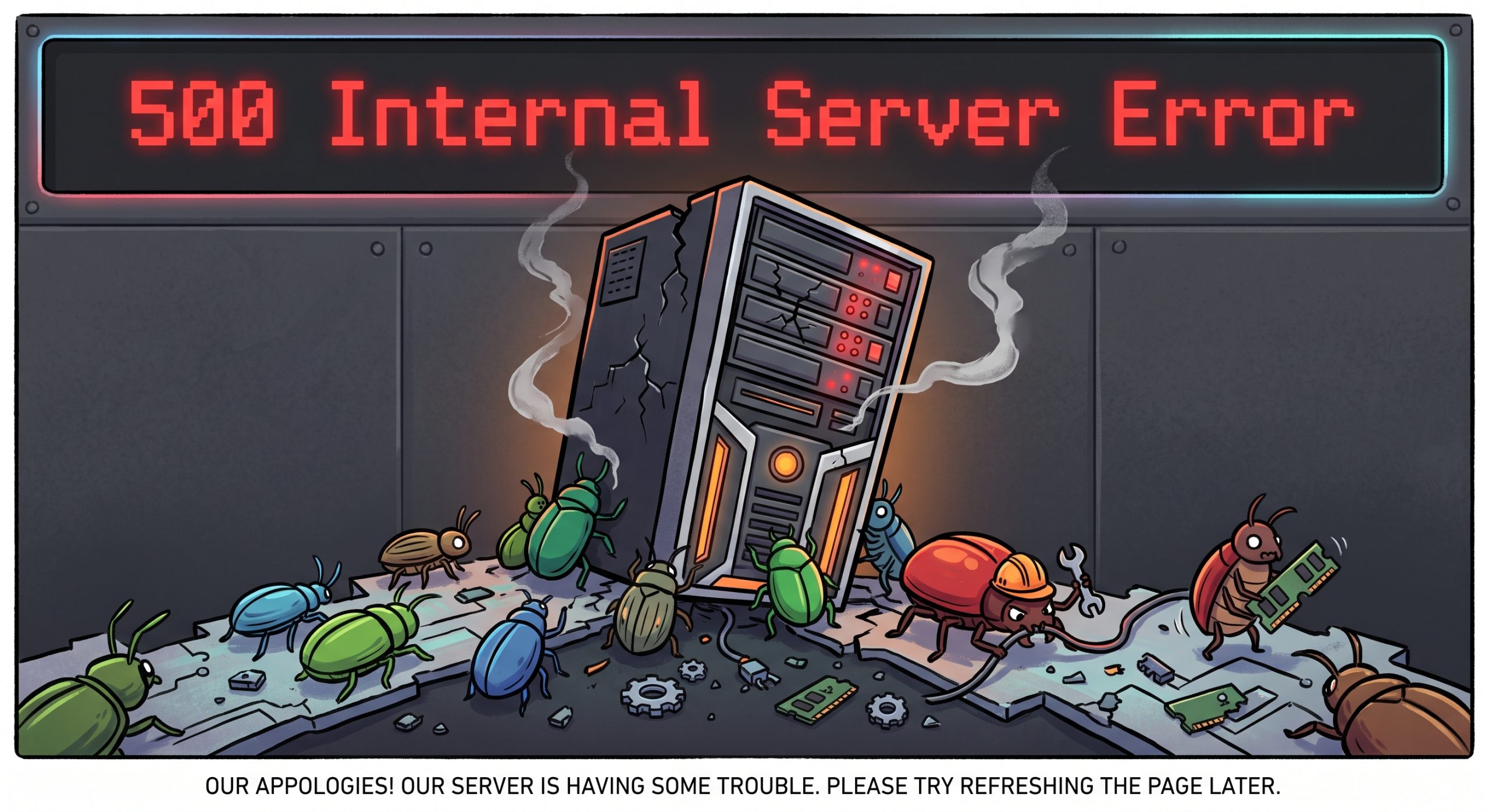
A 500 Internal Server Error is a generic server-side error that indicates something has gone wrong on the website, but the server cannot identify the exact cause in the browser output. Common causes include plugin conflicts, theme issues, corrupted configuration files, PHP memory limits, or server misconfigurations.
Step 1: Check Error Logs
Enable WordPress debugging by editing the `wp-config.php` file:
“`php
define(‘WP_DEBUG’, true);
define(‘WP_DEBUG_LOG’, true);
define(‘WP_DEBUG_DISPLAY’, false);
“`
After enabling logging, review the `wp-content/debug.log` file for specific error messages.
Step 2: Regenerate the .htaccess File
1. Connect to your site using FTP or File Manager.
2. Rename `.htaccess` to `.htaccess_old`.
3. Visit your website.
4. If the site loads, create a new `.htaccess` file by going to:
* WordPress Dashboard → Settings → Permalinks
* Click “Save Changes”
Step 3: Disable All Plugins
1. Rename the `wp-content/plugins` folder to `plugins_old`.
2. Check whether the website starts working.
3. If successful, restore the folder name and reactivate plugins one by one to identify the problematic plugin.
Step 4: Check for Theme Issues
1. Rename the active theme folder located in:
`wp-content/themes`
2. WordPress will attempt to switch to a default theme.
3. If the error disappears, the theme is likely causing the problem.
Step 5: Increase PHP Memory Limit
Edit `wp-config.php` and add:
“`php
define(‘WP_MEMORY_LIMIT’, ‘256M’);
“`
You can also increase memory limits through your hosting control panel if supported.
Step 6: Verify File Permissions
Recommended permissions:
* Directories: 755
* Files: 644
Incorrect permissions can trigger server errors and prevent WordPress from functioning correctly.
Step 7: Check PHP Version Compatibility
Ensure your themes and plugins are compatible with the PHP version running on your server. Recent updates or PHP upgrades may introduce compatibility issues.
Step 8: Contact Your Hosting Provider
If none of the previous steps resolve the issue, contact your hosting provider and request a review of the server error logs. Hosting support can often identify server-level configuration or resource problems that are not visible from WordPress.
Conclusion
The most effective approach is to start with error logs, then test `.htaccess`, plugins, themes, memory limits, and permissions. In most cases, one of these steps will reveal the underlying cause of the 500 Internal Server Error.
Written by dev
Member of the Studio Engineering and Product Architecture practice.